Session 5 · de-code skills and MCP
Democratizing Coding with AI — Fri 9 Oct
Topics
1 Skills
1.1 From prompts to skills
This week we have given AI agents four kinds of text. Each one does a different job:
| Text | What it says | When the agent reads it | Session |
|---|---|---|---|
| Prompt | Do this, now | Once, when you send it | 1–2 |
| Spec | What to build and how to check it | When you point the agent to it | 3–4 |
| AGENTS.md | Rules that always apply | At the start of every task | 4 |
| Skill | How to do a kind of task, step by step | Only when the task needs it | 5 |
A skill is a reusable procedure: a folder with instructions, and optionally scripts and templates, that teaches an agent how to do one kind of task well — the way you want it done. Write it once, and every later task of that kind starts from your best practice instead of from scratch. Like the specs and rules before it, a skill is context: text the agent reads into its context window, but only when a task needs it, so it adds know-how without crowding out the rest of the conversation.
1.2 Anatomy of a skill
A skill is a folder. Only one file is required, SKILL.md; the rest is optional:
skill-html-pwa/
├── SKILL.md                  required: name, description, instructions
├── references/netlify.md     optional: a longer document it reads only when needed
├── scripts/validate_pwa.py   optional: code the agent can run to check its work
└── agents/openai.yaml        optional: extra settings for one agent (OpenAI Codex)
This is the real skill we look at in section 1.5. A skill can also have an assets/ folder with templates and other files to copy. Here is a minimal SKILL.md:
minimal_skill = """---
name: tsv-summary
description: Summarise a tab-separated data file. Use when the user asks what is in
  a .tsv file, or wants a quick overview of its columns before an analysis.
---

# TSV summary

1. Read the file with pandas (sep="\\t").
2. Report the number of rows and columns, and the missing values per column.
3. For each numeric column: mean, SD, min and max, rounded to two decimals.
4. For each text column: the five most frequent values.
5. End with two sentences on what the data seems to be about.
"""
SKILL.md has two parts. The front matter between the --- lines holds the skill’s name and a description of what it does and when to use it. The body is plain Markdown: the steps, rules and checks.
1.3 How agents use skills
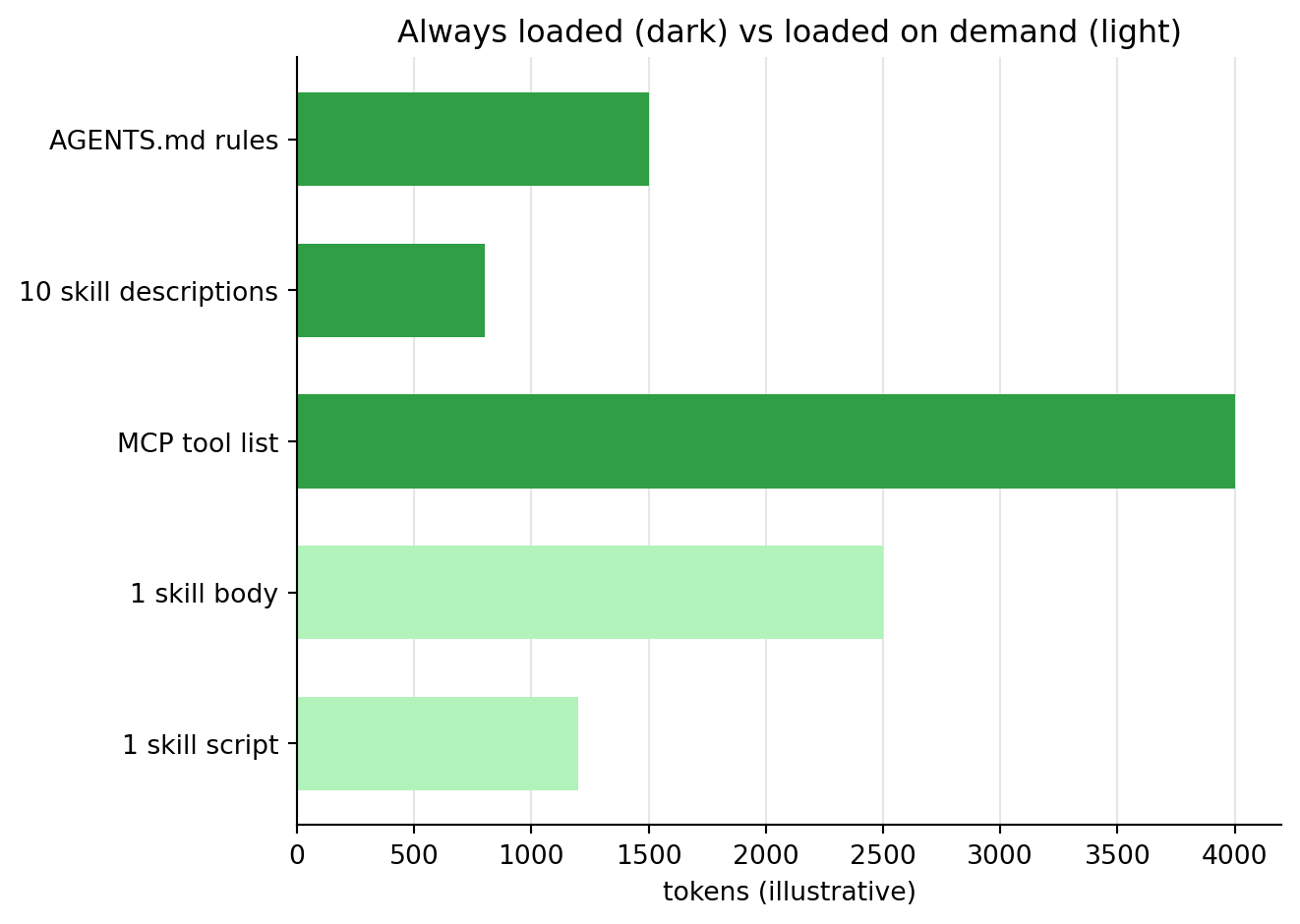
An agent may have dozens of skills, but it does not read them all. At the start it only sees each skill’s name and description — a few lines each, so they cost little of the context window (see the chart above). When your request matches a description, the agent reads that skill’s body, and opens its scripts or references only if a step needs them. This is called progressive disclosure.
So the description is the trigger. Write it as what it does plus “Use when …”, with the words people actually use when they ask for that task. There are two ways to use a skill:
- Automatically: ask in your own words (“give me an overview of survey.tsv”) and the agent picks the matching skill.
- By name: type a slash command with the skill name, e.g.
/tsv-summary survey.tsv.
In Antigravity, a project’s skills live in .agents/skills/<name>/SKILL.md inside the project folder; skills for all your projects are configured under ~/.gemini/config. Type /skills to see which skills the agent has, and /skills reload after adding or editing one.
1.4 Official and custom skills
| Official skills | Custom skills | |
|---|---|---|
| Written by | The company behind the agent or tool | You, your team or your course |
| Examples | Antigravity’s built-in skills such as /grill-me; Anthropic’s public skills for Word, Excel, PowerPoint and PDF files |
The HTML-to-PWA skill below |
| Good for | General tasks that are the same for everyone | Your data, conventions, and quality checks |
| Updated | By the publisher | By you, when your practice changes |
| Trust | Comes from a known source | You know what is in it |
Both follow the same open format, Agent Skills, so a skill written for one agent often works in others. A skill can include scripts that run on your computer, so treat skills from others like any other software: read SKILL.md and its scripts before you install it (session 4, Safety first!).
1.5 A real skill: from HTML app to PWA
A progressive web app (PWA) is a web page you can install like an app: it gets an icon on your phone or computer, opens in its own window, and keeps working offline after the first visit. The skill below turns an existing single-page HTML app — like the ones we built in sessions 3 and 4 — into a PWA, and prepares it for a static web host such as Netlify.
An agent used this skill to turn a regex trainer page into the de-code regex trainer — open it on your phone and try Add to home screen. This is its SKILL.md, unchanged:
skill_md = """---
name: skill-html-pwa
description: Convert an existing single-page HTML web app into a branded, installable, mobile-compatible PWA and prepare or verify it on a static live host such as Netlify. Use when adapting a supplied HTML app rather than building an unrelated site from scratch.
---

# HTML app to hosted PWA

Turn the supplied single-page app into a real progressive web app while preserving its purpose and behavior. Treat branding, mobile usability, installability, offline behavior, host path, and live verification as one delivery problem.

## Establish the deployment shape

Before editing, inspect:

- the source HTML and its scripts, styles, assets, and existing behavior;
- supplied brand names, copy, colors, logos, favicons, and icons;
- the requested output directory;
- the host's publish root and the app's public URL path; and
- existing manifests, service workers, redirects, headers, and host configuration.

Infer straightforward details from the repository and requested URL. Ask only when a missing choice would materially change the product or deployment. Preserve the original source unless the user explicitly wants it edited in place.

Map the filesystem to the public URL explicitly. For example, if the publish root is `web/` and the target URL is `/app-building/pwas/de-code-regex/`, the app belongs in `web/app-building/pwas/de-code-regex/`.

## Preserve and brand the app

Keep the original app's useful interactions, content, saved state, and accessibility semantics unless the user requests a change. Apply requested branding consistently to:

- the document title, description, theme color, and mobile metadata;
- the visible primary title and subtitle;
- the header or app chrome;
- the favicon, application icons, and installed-app name; and
- focus, selection, match, and other primary highlight states.

Prefer supplied brand assets. Inspect them before use. Generate raster sizes from the supplied vector or highest-quality source when needed; do not merely rename a small bitmap as a larger icon.

## Build a real PWA

Create physical, host-served files rather than Blob URLs:

- `index.html`
- `manifest.webmanifest` (or a correctly linked JSON manifest)
- `sw.js`
- at least actual 192×192 and 512×512 PNG icons
- the supplied SVG or other logo assets used by the page

For an app hosted below the domain root, default to relative paths:

    {
      "id": "./",
      "start_url": "./",
      "scope": "./"
    }

Link resources with `./...` and register `./sw.js` with scope `./`. Avoid root-relative paths such as `/icons/icon.png` unless the asset intentionally lives at the origin root. A service worker cannot be registered from a `blob:` URL.

The manifest should include the requested name, a short name that fits launcher UI, description, `standalone` display mode, theme and background colors, and valid icon entries. Use `purpose: "any maskable"` only when the artwork stays legible inside the maskable safe area.

## Design offline behavior safely

Cache the local application shell during service-worker installation and provide a cached navigation fallback. Use a site-specific cache namespace and increment its version when shell files change.

When removing old caches, delete only caches owned by this app. Cache storage is origin-wide even though service-worker control is scoped; never delete every cache on a host that may contain sibling apps.

Browser storage is origin-wide as well: `localStorage`, `sessionStorage` and IndexedDB are shared by every app on the host. Give new keys and database names an app-specific prefix, such as `regexcraft_pattern`, and never clear all storage. Keep the source app's existing keys unless you also migrate their values, so users do not lose saved state.

Prefer local CSS, JavaScript, fonts, and icons for dependable offline startup. If the source relies on CDNs and retaining them is proportionate, explain that the first visit must be online and use runtime caching deliberately. Do not claim complete offline behavior until it has been tested with network access disabled.

## Make the existing UI mobile-compatible

Use a responsive viewport without disabling zoom. Keep primary body text readable, controls touch-friendly, focus visible, and text selectable where useful. Verify that:

- the title and essential brand copy remain visible;
- navigation condenses without becoming ambiguous;
- controls do not clip or overlap;
- intentional horizontal toolbars scroll without causing page-wide overflow;
- editors and results remain usable on a narrow portrait screen; and
- the layout also remains coherent at desktop width and 200% text enlargement.

Do not replace a functioning app with a landing page or put promotional content ahead of its primary activity.

## Prepare the host

The app requires HTTPS in production. Preserve the user's hosting provider and deployment workflow. Do not publish, push, or mutate a live host unless requested.

For Netlify-specific placement, MIME headers, and verification, read [references/netlify.md](references/netlify.md).

## Validate before handoff

Run the bundled validator:

    python scripts/validate_pwa.py /path/to/pwa

Then serve the app over HTTP; `file://` cannot validate service workers. Check at least one desktop and one narrow mobile viewport, exercise the app's primary interaction, and inspect the actual screenshots. Verify the manifest and every icon URL, service-worker registration and cache creation, reload behavior, and offline startup after an online load.

For a live URL, check response status and MIME types rather than assuming the upload path is correct. Confirm that HTML is served as HTML, the service worker as JavaScript, the manifest as `application/manifest+json` or another browser-accepted JSON type, and icons with their declared image types.

Report what was created, the public-path assumption, what was directly verified, and any remaining host-side action. Distinguish "prepared for deployment" from "deployed and live."
"""
What to notice:
- The description says what the skill does and when to use it (“Use when adapting a supplied HTML app …”), so the agent can pick it by itself.
- The body is a procedure with checks, not code: inspect first, keep what works, build the PWA files, make it work offline and on mobile, then validate.
- The Netlify details live in
references/netlify.md, and the skill says to read that file only when the host is Netlify — progressive disclosure (section 1.3). - A script checks what instructions alone cannot:
scripts/validate_pwa.pytests the manifest, the icon sizes and the service worker. - It asks for honest reporting: the agent must say whether the app is only prepared for deployment or actually deployed and live.
1.6 Use the skill
Download skill-html-pwa.zip (or browse the files on GitHub), read SKILL.md and the script first (section 1.4), and unzip it into .agents/skills/ in a project folder. Check that Antigravity lists it with /skills, then try it both ways — by name and in your own words — on the word-cloud app from sessions 3 and 4:
by_name = """
/skill-html-pwa Turn wordcloud.html into an installable PWA that will be hosted
at https://<your-site>.netlify.app/apps/wordcloud/
"""

own_words = """
Make my word-cloud page installable on my phone, so it also opens without internet.
"""
A good run ends with the validator’s output and a clear statement: is the app only prepared for deployment, or deployed and live? The word-cloud app loads its libraries from a CDN, so also check what the agent says about offline use — the skill tells it not to claim offline support it has not tested.
2 MCP: Model Context Protocol
2.1 Why MCP
A skill teaches the agent how to do something with the tools it already has: reading and writing files, running commands. Some tasks need more: opening a web page in a real browser, reading issues on GitHub, querying a database, checking a calendar. The Model Context Protocol (MCP) is an open standard for giving an agent such new tools and data.
Before MCP, every AI app needed its own connector for every service. With MCP, a service is wrapped once as an MCP server, and every agent that speaks MCP — Antigravity, Claude, ChatGPT and many code editors — can use it. It is often compared to USB-C: one plug for everything.
2.2 Anatomy of MCP
| Part | What it is | Example |
|---|---|---|
| Host | The AI app you use | Antigravity |
| Client | The connection inside the host, one per server | Antigravity’s link to the GitHub server |
| Server | A small program that offers capabilities | The GitHub MCP server |
A server can offer three kinds of things:
- Tools — actions the agent can call, with named inputs:
search_issues(query),take_screenshot(url). - Resources — data the agent can read: a file, a database table, a codebook.
- Prompts — ready-made prompt templates the user can pick.
Servers run in one of two ways (the transport): locally, as a program on your computer that the host starts and talks to (stdio), or remotely, at a web address (HTTP). One tool call goes like this:
- You ask: “Which issues are open in my repo?”
- The agent sees a matching tool in the server’s tool list and calls it, with inputs.
- Antigravity asks for your approval (unless you allowed that tool before).
- The server does the work and sends the result back.
- The agent reads the result and answers you — or calls the next tool.
2.3 Skills and MCP
| Skill | MCP server | |
|---|---|---|
| Adds | Know-how: steps, rules, checks | Abilities and data: new tools |
| Is | Text (+ optional scripts) | A running program |
| Context cost | Small until used | Its tool list is loaded while it is on |
| Write your own | Easy: a Markdown file | Some code (a few lines in Python) |
| Use when | You repeat a kind of task | The agent cannot reach something it needs |
They work well together: a skill can say which MCP tools to use, and in what order.
2.4 Build a minimal MCP server
A server in Python takes a few lines with the official MCP Python SDK. Each tool is an ordinary function: its name, type hints and docstring tell the agent what it does and which inputs it takes. This server offers two of the session 1 analyses as tools, plus the dataset’s codebook as a resource:
server_code = '''
"""komp014 MCP server: quick analyses of a tab-separated data file."""
import pandas as pd
from scipy import stats
from mcp.server import MCPServer

mcp = MCPServer("komp014")


@mcp.tool()
def describe_tsv(url: str) -> dict:
    """Rows, columns and the mean of every numeric column of a .tsv file."""
    df = pd.read_csv(url, sep="\\t")
    means = df.select_dtypes("number").mean().round(2)
    return {"rows": len(df), "columns": list(df.columns), "means": means.to_dict()}


@mcp.tool()
def group_difference(url: str, group: str, outcome: str) -> dict:
    """Welch t-test and Cohen's d for the outcome between the two levels of group."""
    df = pd.read_csv(url, sep="\\t")
    a, b = [g[outcome] for _, g in df.groupby(group)]
    t, p = stats.ttest_ind(a, b, equal_var=False)
    sd = ((a.var() * (len(a) - 1) + b.var() * (len(b) - 1)) / (len(a) + len(b) - 2)) ** 0.5
    d = (a.mean() - b.mean()) / sd
    return {"t": round(float(t), 2), "p": round(float(p), 4), "d": round(float(d), 2)}


@mcp.resource("komp014://codebook")
def codebook() -> str:
    """What the columns of the komp014 toy dataset mean."""
    return ("IV_CAT_GROUP: category1/category2. Items 1-5: IV1_ITEM1, IV1_ITEM2, "
            "IV2_ITEM1, IV2_ITEM2, DV_ITEM1, DV_ITEM2. Indices are item means: "
            "IV_INDEX1, IV_INDEX2, DV_INDEX (outcome).")


if __name__ == "__main__":
    mcp.run()  # local server: talks to the host over stdin/stdout
'''

with open("komp014_server.py", "w") as f:
    f.write(server_code)
To use it, you need Python with the mcp package on your own computer (MCP servers run next to the agent, not in Colab). Try the server in the MCP Inspector, a web page where you can call its tools by hand, then add it to Antigravity and check that it is listed:
!pip install "mcp[cli]" pandas scipy
!mcp dev komp014_server.py
!agy mcp add komp014 python /full/path/to/komp014_server.py
!agy mcp list
Then ask the agent something only the server can answer quickly:
mcp_prompt = """
Use the komp014 tools: describe
https://raw.githubusercontent.com/nils-holmberg/de-code/main/csv/komp014-simulated-data-n100.tsv
and test whether DV_INDEX differs between the IV_CAT_GROUP levels.
Explain the result in two sentences.
"""
The answer should report a Cohen’s d of size 0.58 (its sign shows which group scores higher) — the same effect as in session 1, now computed by a tool the agent called.
2.5 An MCP server for this website
The de-code site has grown in many directions: workshop sessions with slides and notebooks, section pages, an installable app, a Shiny app and skill downloads — built with different tools, in different folders, and not all of them linked from the home page. Visitors rarely browse; they ask questions. As site managers, we can let an agent answer those questions from the site itself.
The site already publishes two descriptions of everything on it: an llms.txt, a short table of contents written for AI agents, and a full content index with the text of every page. llms.txt is a list an agent can read; an MCP server adds search, so the agent asks for what it needs and gets back only the matching pages, with their links:
| What | Kind | What the agent gets |
|---|---|---|
list_sections() |
tool | the site’s sections and their landing pages |
search_site(query, section, limit) |
tool | the best-matching pages: title, link, type and a short snippet |
get_page(url) |
tool | one page’s headings and text, to answer from its content |
site://llms.txt |
resource | the overview of the whole site |
The server reads the content index once and keeps it in memory. Its search is deliberately simple — a match in a title counts more than one in the text, and a page that matches every word ranks first — and every tool returns a few short results instead of whole pages, which keeps the agent’s context window small (session 4).
de_code_mcp_code = '''
"""de-code-mcp: an MCP server for finding pages on the de-code website in plain language."""
import json
import os
import re
from urllib.request import urlopen

from mcp.server import MCPServer
from mcp.server.mcpserver.exceptions import ToolError

SITE = "https://de-code-ai.netlify.app"
INDEX_SOURCE = os.environ.get("SITE_INDEX", f"{SITE}/site/index.json")
LLMS_SOURCE = os.environ.get("SITE_LLMS", f"{SITE}/llms.txt")
WEIGHTS = {"title": 5, "headings": 3, "description": 2, "text": 1, "type": 2}
SKIP = {"the", "and", "for", "can", "how", "what", "where", "which", "find", "site", "page", "about"}

mcp = MCPServer("de-code-mcp")


def read(source: str) -> str:
    """Read a URL or a local file as text."""
    if source.startswith("http"):
        with urlopen(source, timeout=20) as response:
            return response.read().decode("utf-8")
    with open(source, encoding="utf-8") as f:
        return f.read()


INDEX = json.loads(read(INDEX_SOURCE))       # loaded once, kept in memory
PAGES = {page["url"]: page for page in INDEX["pages"]}


def score(page: dict, words: list[str]) -> float:
    fields = {"title": page["title"], "headings": " ".join(page["headings"]),
              "description": page["description"], "text": page["text"]}
    fields = {name: value.lower() for name, value in fields.items()}
    total, matched = 0, 0
    for word in words:
        # a word anywhere in a long text counts once, so long pages do not win by length
        hits = {name: min(value.count(word), 1 if name == "text" else 3) for name, value in fields.items()}
        hits["type"] = 3 if word == page["type"] else 0     # "app", "slides", "download"
        if any(hits.values()):
            matched += 1
        total += sum(WEIGHTS[name] * n for name, n in hits.items())
    if page["type"] == "slides":
        total /= 2                                # prefer the web page over its slides
    return total * matched / len(words)           # pages that match every word rank first


@mcp.tool()
def list_sections() -> list[dict]:
    """List the sections of the de-code website, with their landing pages."""
    return [{"id": s["id"], "title": s["title"], "url": s["url"], "description": s["description"]}
            for s in INDEX["sections"]]


@mcp.tool()
def search_site(query: str, section: str = "", limit: int = 5) -> list[dict]:
    """Search all pages, slides, apps and downloads on the de-code website.

    Args:
        query: What to look for, in plain words, e.g. "welch t-test" or "install app".
        section: Optional section id to search in, e.g. "coding" (see list_sections).
        limit: How many results to return.
    """
    words = [w for w in re.findall(r"[a-z0-9]+", query.lower()) if len(w) > 2 and w not in SKIP]
    words = [w[:-1] if len(w) > 3 and w.endswith("s") else w for w in words]   # apps -> app
    if not words:
        return []
    ranked = sorted(((score(p, words), p) for p in INDEX["pages"]
                     if not section or p["section"] == section), key=lambda x: -x[0])
    results = []
    seen = set()
    for points, page in ranked:
        if points == 0 or len(results) == limit:
            break
        base = page["url"].replace("-slides.html", ".html")
        if base in seen:
            continue                                # slides of a page already listed
        seen.add(base)
        text = page["text"]
        at = min([i for i in (text.lower().find(w) for w in words) if i >= 0], default=0)
        results.append({"title": page["title"], "url": page["url"], "type": page["type"],
                        "section": page["section"], "snippet": text[max(0, at - 80):at + 160]})
    return results


@mcp.tool()
def get_page(url: str) -> dict:
    """Get one page's description, headings and text, to answer from its content.

    Args:
        url: The page's full URL, as returned by search_site.
    """
    page = PAGES.get(url)
    if page is None:
        # a ToolError is a deliberate error, and the agent sees its message
        raise ToolError(f"No page with that URL in the site index: {url}. Use search_site first.")
    return {key: page[key] for key in ("title", "url", "description", "headings", "text")}


@mcp.resource("site://llms.txt")
def overview() -> str:
    """The site's llms.txt: every section and page, with one-line descriptions."""
    return read(LLMS_SOURCE)


def main():
    mcp.run()  # local server: talks to the host over stdin/stdout


if __name__ == "__main__":
    main()
'''

with open("de_code_mcp.py", "w") as f:
    f.write(de_code_mcp_code)
The same server is also a small package: download de-code-mcp.zip, or browse it on GitHub with a README, a pyproject.toml and a requirements.txt. With uv on your computer you need neither Python nor the download: uvx fetches the package from GitHub and runs it.
Try it in Colab first. You can test the server without installing anything on your own computer: run the cell above in Colab to save de_code_mcp.py, install the MCP package, and connect a client to the server inside the notebook. It is a real MCP conversation — list the tools, call them, read the resource — only without Antigravity in between.
%pip install -q "mcp[cli]>=2.3"import json
from mcp import Client
import de_code_mcp # the file saved above; it loads the site index once
query = "welch t-test"
async with Client(de_code_mcp.mcp) as client:
# 1. Ask the server what it can do - an agent does this first
tools = await client.list_tools()
print("1. The server offers these tools:", [tool.name for tool in tools.tools])
# 2. Search the whole site; the best-matching pages come first
found = await client.call_tool("search_site", {"query": query, "limit": 3})
hits = found.structured_content["result"]
print(f"\n2. search_site found these pages for {query!r}, best match first:")
for hit in hits:
print(f" - {hit['title']} ({hit['type']}): {hit['url']}")
# 3. Read the top hit, the way an agent reads a page before it answers
top = hits[0]
page = await client.call_tool("get_page", {"url": top["url"]})
headings = json.loads(page.content[0].text)["headings"]
print(f"\n3. get_page read the top hit, {top['title']!r}. Its first headings:")
for heading in headings[:6]:
print(f" - {heading}")How to read the output: step 1 is the server’s menu of tools, which an agent reads to decide what to call. In step 2 the server scored every page on the site — a match in a title counts more than one in the text, and pages that contain every word come first — and returned the three best, each with its link; slides are left out when their web page is already listed. Step 3 is the moment an agent reads the page itself, so its answer can come from the content and point to a real link.
Change the query and run the cell again: try “install app”, “shiny” or “skill download”.
Use it from your agent — hosted, nothing to install. The same server also runs online, at https://de-code-ai.netlify.app/mcp. Every agent that speaks MCP can use it with one line, without Python, Node.js or uv:
!agy mcp add de-code-mcp https://de-code-ai.netlify.app/mcp                        # Antigravity
!claude mcp add --transport http de-code-mcp https://de-code-ai.netlify.app/mcp    # Claude Code
!codex mcp add de-code-mcp --url https://de-code-ai.netlify.app/mcp                # Codex CLI
ChatGPT on the web can use it too, as a custom connector. ChatGPT only connects to servers at a public web address — exactly what the hosted version is:
- In ChatGPT, open Settings → Apps & Connectors, and under Advanced settings turn on Developer mode. It is available on paid plans; in a Business or Edu workspace an admin may have to allow custom connectors first.
- Back in Apps & Connectors, choose Create. Name:
de-code-mcp. Description: Search the de-code website for course pages, apps and downloads. MCP server URL:https://de-code-ai.netlify.app/mcp. Authentication: No authentication — the server only reads public pages. - Start a new chat, switch on the connector from the + menu (under Developer mode), and ask one of the questions below.
ChatGPT’s menus move from time to time; if a name differs, look for Developer mode and Create connector.
Or run it locally. The Python server from the cells above can also run on your own computer — useful to learn how a local (stdio) server works, or to change it. To keep it apart from the hosted one, add it under the name de-code-mcp-local. With uv installed, uvx fetches the package from GitHub and runs it, with no Python setup:
# With uv: the agent starts the server straight from GitHub
!agy mcp add de-code-mcp-local uvx --from "git+https://github.com/nils-holmberg/de-code#subdirectory=web/agentic-ai/mcps/de-code-mcp" de-code-mcp
!claude mcp add de-code-mcp-local -- uvx --from "git+https://github.com/nils-holmberg/de-code#subdirectory=web/agentic-ai/mcps/de-code-mcp" de-code-mcp
!codex mcp add de-code-mcp-local -- uvx --from "git+https://github.com/nils-holmberg/de-code#subdirectory=web/agentic-ai/mcps/de-code-mcp" de-code-mcp

# Or with Python: install, try the tools in the MCP Inspector, then add the file
!pip install "mcp[cli]"
!mcp dev de_code_mcp.py
!agy mcp add de-code-mcp-local python /full/path/to/de_code_mcp.py
The first local start downloads the package and its dependencies, which can take longer than an agent waits for a server to start. If the server does not show up, run the uvx command once in a terminal (stop it with Ctrl+C), then start the agent again. After that, updates arrive by themselves: each time an agent starts the server, uvx asks GitHub for the newest commit and rebuilds only if the package changed. To keep everyone on one fixed version, add a commit after the repository name: …/de-code@fb37b6b#subdirectory=….
Running an add command again is safe in Antigravity and Codex: it updates the existing entry. Claude Code refuses with “already exists” and changes nothing — remove the server first if you want to replace it. To remove either version (use de-code-mcp-local for the local one):
!agy mcp remove de-code-mcp
!claude mcp remove de-code-mcp
!codex mcp remove de-code-mcp
Now ask about the site in plain language:
site_prompts = """
Where on de-code can I learn about Welch's t-test? Give me the page and the section.

Which apps on the de-code site can I install on my phone, and how?

Find the agent skill download on de-code and explain how to install it.
"""
A good answer comes from the tools, not from memory: the agent calls search_site, often get_page for the best hit, and replies with real links instead of guessed ones. Antigravity shows every tool call, so you can see which pages an answer came from.
As site managers, a few things follow:
- One index, three audiences: the same generated index gives people
llms.txtand the pages, search engines the sitemap, and agents this MCP server. - Keep it current: the index is rebuilt from the published pages before each update of the site, and sessions that are not released yet stay out of it.
- Hosting: the online version is the same server ported to TypeScript, because the site’s host (Netlify) runs small functions in JavaScript but not Python. It runs next to the site, keeps nothing between requests, needs no sign-in because it only reads public pages, and allows 600 requests a minute per visitor. A small test checks that the online and the Python version give the same answers.
2.6 Existing MCP servers
Many MCP servers are ready to use, and they come in two kinds. Remote servers run at the provider: you add a web address, and nothing is installed on your computer — the easiest way to try MCP. Local servers run on your computer and need the tool that starts them: Node.js for npx, or uv for uvx (uv brings its own Python). All are added with one agy mcp add command, or in the Antigravity app’s MCP settings:
| Server | What the agent can do | You need | Add it |
|---|---|---|---|
| de-code-mcp (hosted, section 2.5) | Search this website: pages, apps and downloads | nothing | agy mcp add de-code-mcp https://de-code-ai.netlify.app/mcp |
| GitHub | Issues, pull requests and code on GitHub | nothing (a GitHub token) | agy mcp add --header "Authorization: Bearer <token>" github https://api.githubcopilot.com/mcp/ |
| Context7 | Up-to-date documentation for code libraries | nothing (an API key) | agy mcp add --header "Authorization: Bearer <key>" context7 https://mcp.context7.com/mcp |
| Filesystem | Read and write files in folders you choose | Node.js | agy mcp add fs npx -y @modelcontextprotocol/server-filesystem ~/projects |
| Memory | Remember facts between conversations | Node.js | agy mcp add memory npx -y @modelcontextprotocol/server-memory |
| Playwright | Open and click through web pages in a browser | Node.js | agy mcp add playwright npx -y @playwright/mcp@latest |
| Chrome DevTools | Inspect a page in Chrome: console errors, layout, speed | Node.js | agy mcp add devtools npx -y chrome-devtools-mcp@latest |
| Fetch | Download a web page as text | uv | agy mcp add fetch uvx mcp-server-fetch |
| Git | Read history, diffs and branches of a repository | uv | agy mcp add git uvx mcp-server-git |
| Time | Current time and time zone conversion | uv | agy mcp add time uvx mcp-server-time |
Our own servers from sections 2.4 and 2.5 are local Python servers — de-code-mcp also runs online (first row) and with uv alone (section 2.5). Try them in Colab without installing anything (as with the test cell in section 2.5), or install Python on your computer to use them from Antigravity. Hosted online, they would work like the remote rows above. The same safety rules as in session 4 apply, with one more: an MCP server is a program that runs with your permissions.
- Prefer servers from the service itself or the MCP project, and read what each tool does.
- Give tokens and folders the smallest access that works (read-only if you can). A token or key is a password: keep it out of the project folder (session 4).
- Keep tool approval on, and turn servers off (
agy mcp disable <name>) when you do not need them — their tool lists also take up context.
3 Putting it together
3.1 A skill that uses MCP
Skills and MCP combine naturally. The PWA skill already asks the agent to “render the live URL at desktop and mobile sizes” — but an agent can only do that if it has a browser. A browser MCP server from section 2.6 gives it one. Add a short section to the skill, and the agent uses those tools when they are there:
skill_md += """
## With browser tools
If a Chrome DevTools or Playwright MCP server is available, open the live URL at
390 px and 1280 px width, check the console for errors, and confirm that the
service worker is registered.
"""
The skill holds the procedure, the server provides the tool, and AGENTS.md still sets the rules — each part stays small and can be reused on its own. Antigravity can also bundle skills, rules and MCP servers into one installable plugin (/plugin), which is how teams share a complete setup.
3.2 The week in one table
| Session | You made | What the AI got from you |
|---|---|---|
| 1 Data analysis | An analysis, step by step | Prompts |
| 2 Data generation | Simulated data and personas | A detailed prompt, then an analysis spec |
| 3 App building | App specs: Shiny, word clouds | Specs with acceptance checks |
| 4 Agentic coding | Apps built by an agent, spec by spec; a first agent in Python | AGENTS.md rules and specs that it updates |
| 5 Skills and MCP | A reusable skill, a small MCP server | Procedures and new tools |
The common thread is specifications as code: the clearer and more reusable the text you give an AI, the more you can hand over — and the easier it is to check the result.
3.3 Your turn
- Pick a task you repeat in your own work — a report, a data check, a type of analysis.
- Write it as a skill: a
SKILL.mdwith a clear “Use when …” description and five to ten steps, saved in.agents/skills/<name>/in a project folder. - Use it twice in Antigravity, once by name and once in your own words, and improve the description until the agent picks it up by itself.
- Pick one MCP server from the table — a remote one if you have nothing installed — add it, and use it in a small task — then turn it off again if you do not need it.
- Ask the de-code-mcp server a question about this week’s material, and check that the links it gives you are real.